



Navigating BreedLOGIC: Search and Display Options
KEY TAKEAWAYS
- Use the navigation tabs to move between BreedLOGIC features.
- Customise how information is searched and displayed.
- Manage your settings and preferences through your BreedLOGIC account.
BreedLOGIC Database Search provides a range of navigation, search and display tools designed to help you quickly find and view the information most relevant to your needs. This guide provides an overview of the key navigation and display options available throughout the platform.
[TIP] Many of the features introduced in this guide can be personalised and saved when you are signed in to a BreedLOGIC account.
NAVIGATING BETWEEN FEATURES
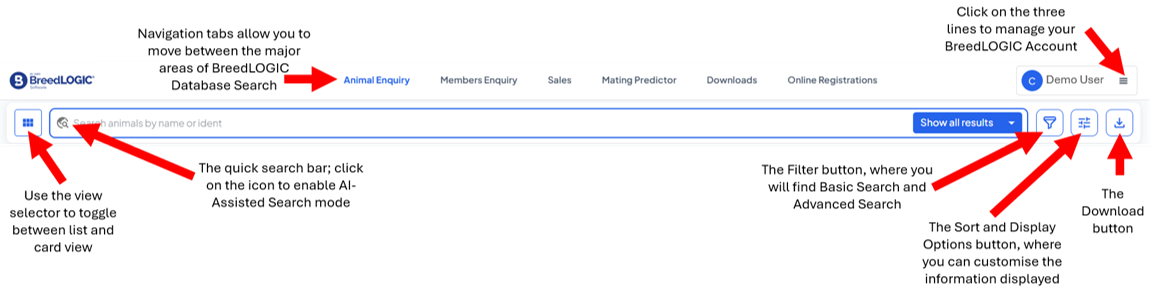
Across the top of the screen, you will find a series of navigation tabs that allow you to move between the major areas of BreedLOGIC Database Search (Figure 1).
Please note that the available tabs may vary between breed societies. Not all societies utilise every BreedLOGIC feature, so some options may not be visible in your database.
ACCOUNT MANAGEMENT
Your BreedLOGIC account can be customised to suit your preferences and, where available, linked to existing registry accounts. To manage your account, click the menu next to your username in the top-right corner of the screen and select Account (Figure 1).
Within the Account area, you will find three tabs:
- Profile: Use this tab to view and update your basic account information.
- Settings. Use this tab to manage notification preferences, change your password and enable AI-Assisted Search.
- Linked Accounts. Use this table to link eligible ABRI Registry accounts and configure My Herd options. For more information, refer to the Linking Accounts user guide.
LIST VIEW AND CARD VIEW
Search results can be displayed in either:
- List View (default): displays results in a table format, allowing you to compare multiple records at once.
- Card View: displays each record as an individual card and has been specifically designed for users accessing BreedLOGIC on smaller devices such as mobile phones.
The view selector is located on the left-hand side of the quick search bar (Figure 1). Switch between views at any time without affecting your search results.
SEARCH OPTIONS
There are four search options available:
- Quick Search: Allows you to quickly search using a name or identifier. Quick Search is ideal when you already know some key information about the animal or member you are looking for.
- Basic Search: Provides a simple, easy-to-use search format. Basic Search replicates the core search fields previously available within Internet Solutions, making it familiar, quick and intuitive for existing users. Users can search using a range of animal details, member information and genetic evaluation criteria.
- Advanced Search: Allows you to build highly targeted searches using multiple and/or filters. This provides greater flexibility, and is particularly useful when combining multiple animal and genetic evaluation filters to refine search results.
- AI-Assisted Search: Allows you to search using natural language questions and descriptions. Once AI Search has been enabled within your Account Settings, click the Search icon within the Quick Search bar (Figure 1) to switch to AI-Assisted Search mode. This search option is only available for logged-in users.
The Filter button (Figure 1), located immediately to the right of the Quick Search bar, provides access to both Basic Search and Advanced Search options. Additional search options such as My Herd and Active Sale Listings can also be found under the Filter button.
One of the key advantages of BreedLOGIC is that each search displays the number of matching records before you execute the search, allowing you to refine your criteria if required.
For more information: Refer to the Finding Information: Search Options Explained user guide.
SORT AND DISPLAY OPTIONS
The Sort and Display Options button is located on the right-hand side of the Quick Search bar (Figure 1). This menu allows you to customise how information is displayed, including:
- Showing or hiding columns.
- Displaying EBVs, EBV Accuracy and Percentiles where available.
- Resetting the page back to the default layout.
Additional column options can be accessed by clicking the three dots within individual column headings. These options allow you to:
- Sort in ascending or descending order.
- Pin a column to the left or right.
- Hide a column from view.
These tools allow you to tailor the display to suit your workflow and the information most relevant to you.
DOWNLOADING SEARCH RESULTS
The Download button is located on the right-hand side of the search tools area (Figure 1). This feature allows you to export the records currently displayed on screen for further analysis or reporting.
[NOTE] You must be signed in to a BreedLOGIC account to access download functionality.
NAVIGATING SEARCH RESULTS
At the bottom-right of the search results table, you will find the page navigation controls.
These controls allow you to:
- Display 10, 25 or 50 rows per page.
- Move between result pages using the Previous and Next arrows.
Adjusting the number of rows displayed can make it easier to browse large result sets or reduce scrolling when using smaller devices.