



Searching for Multiple Animals Using a List of Idents
KEY TAKEAWAYS
- You can search for several animals at once by entering a comma-separated list of idents in Basic Search.
- Type each ident followed by a comma, or paste a whole list. Each ident becomes its own chip.
- The search returns animals that match any of the idents you entered.
If you already have a list of animals you want to look at, for example from a sale catalogue, a spreadsheet or an email, you do not need to search for them one at a time. Basic Search lets you enter many animal idents in a single field and returns all of the matching animals together in one result list.
This guide explains how to type or paste a list of idents, and how BreedLOGIC uses that list to find animals. For an overview of all search methods, refer to the Finding Information: Search Options Explained user guide.
WHERE TO ENTER THE IDENTS
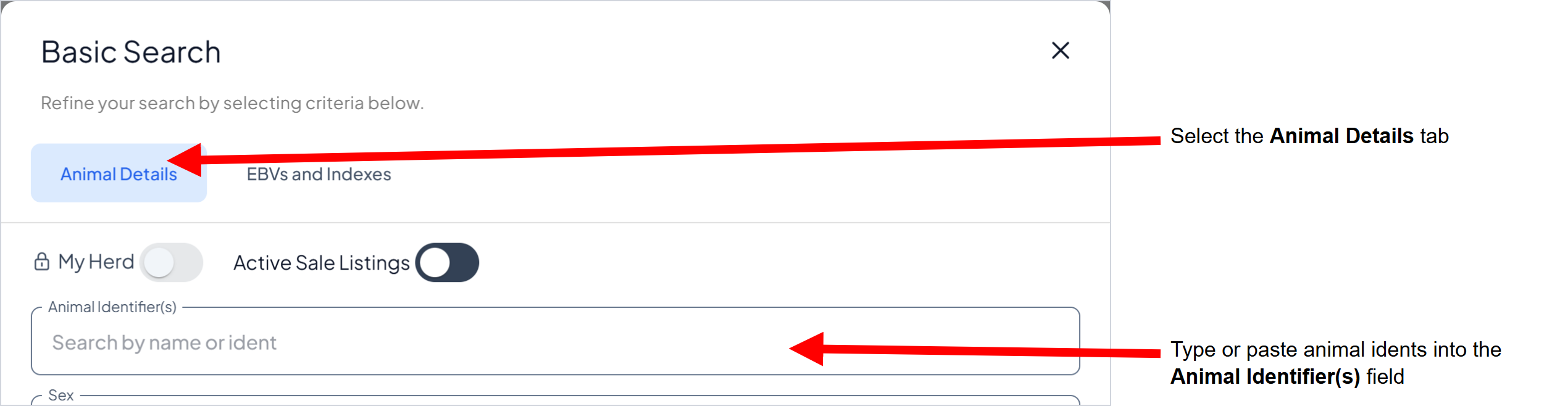
- Open Basic Search by clicking the Filter button to the right of the Quick Search bar.
- Select the Animal Details tab.
- Click in the Animal Identifier(s) field (Figure 1). It shows the prompt "Search by name or ident".
OPTION 1: TYPING A LIST OF IDENTS
- Type the first ident, for example ABC123.
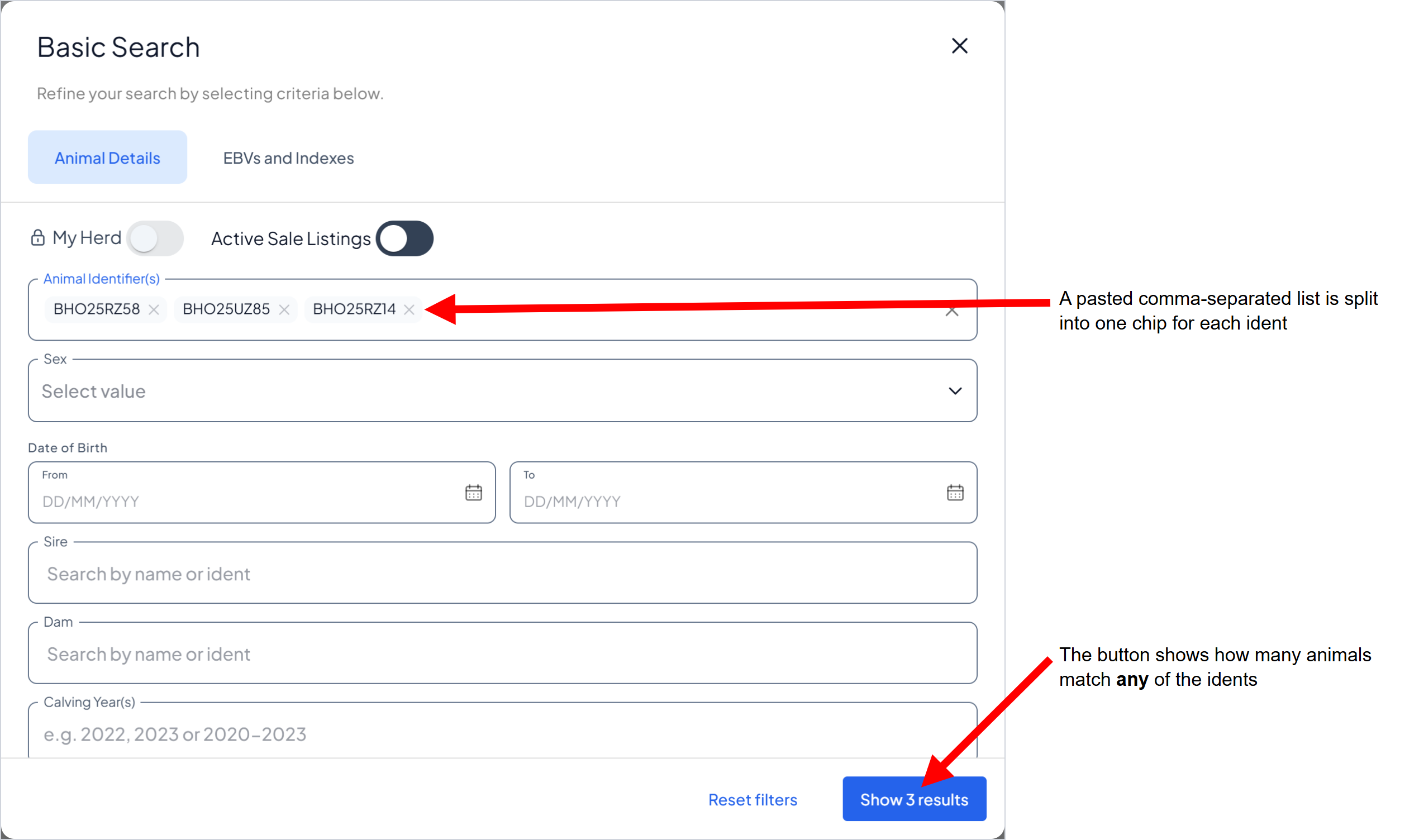
- Type a comma (,). The ident turns into a chip and the field clears, ready for the next ident (Figure 2).
- Type the next ident and a comma. Repeat for each animal.
- Click the Show results button to run the search. The button shows how many animals match, for example Show 3 results.
You can also press Enter instead of typing a comma to turn an ident into a chip.

OPTION 2: PASTING A LIST OF IDENTS
- Copy your list of idents, separated by commas, for example ABC123, DEF456, GHI789.
- Click in the Animal Identifier(s) field and paste the list.
- BreedLOGIC immediately splits the list into one chip for each ident (Figure 3).
- Click the Show results button to run the search.
Spaces before or after the commas do not matter, and an ident that is already in the field is only added once.
HOW THE RESULTS WORK
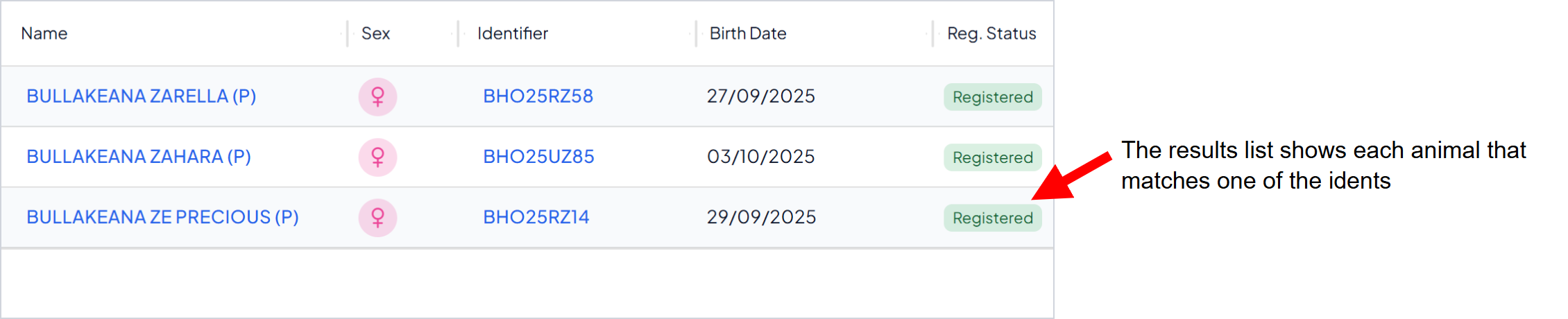
When the field contains more than one chip, BreedLOGIC returns every animal that matches any of the chips. For example, a search for ABC123, DEF456, GHI789 returns up to three animals: one for each ident that is found (Figure 4). An ident that does not match an animal is ignored, so the other animals are still returned.
As with all searches, the number of matching records is displayed on the Show results button before you run the search, so you can quickly check that the list was entered correctly. You can also combine the list with other Basic Search criteria, such as sex or registration status, to narrow the results further.
CHANGING THE LIST
- To remove an ident, click the x on its chip.
- To add more idents, click in the field after the last chip and type or paste them.
TIPS
- Use commas to separate idents. Idents separated only by spaces or line breaks are not split into separate chips. If your idents are in a spreadsheet column, join them with commas before you copy them.
- Finish the last ident with a comma or Enter. If you type an ident and then click away from the field without a comma or Enter, BreedLOGIC treats that text as a partial (wildcard) match rather than an exact ident.
- Wildcards can be part of the list. A chip can contain a wildcard such as AB%, as described in the Search Options Explained guide. Animals that match the wildcard or any of the other chips are returned.
- Sire and Dam work the same way. The Sire and Dam fields in Basic Search also accept a comma-separated list of idents, for example to find the progeny of several sires at once.
- Quick Search accepts lists too. You can also paste a comma-separated list of animal idents into the Quick Search bar at the top of the page.